how to disable Cortana in windows 10, Learn how disable Cortana on home edition, disable Cortana windows 10 on Wondows 10 Pro, disable Cortana in windows 10 on Windows enterprise. get all the ways to enable and disable cortana on windows 10 in one post.
How to Disable Cortana in Windows 10
Windows users are facing a huge problem with Microsoft AI Application Cortana, Microsoft Hate to give you permission you want to disable Cortana. Even if you wanted to disable cortana via the toggle button you used to be able to turn off and on Cortana in Windows 10, anyway, Microsoft removed toggle switch button now in.
So, What if you want to disable Cortana in windows 10? in this post, we're going to help you how to disable Cortana in windows 10, Let's finish Cortana up!!

How to disable Cortana in Windows 10: Disable Cortana via the Registry
If you installed Windows 10 Home Edition, you need to edit the Windows Registry to apply the changes. You can still apply this way if you're having Windows 10 Professional Edition or Enterprise Edition, But we prefer to use the other way to disable it with Group Policy Editor.
But, if you're using Windows Pro or Enterprise, we recommend using the easier Group Policy Editor, as described in the next section.
Warning 1
Registry Editor Must be used in Administrator mode, it's a powerful tool and abusing it can destroy your system make unstable operations. This should be a simple hack and tips to disable your Cortana, And following instructions won't harm your system or cause you any problems.
RELATED POST: Get 300 USD FREE Yelp coupon
Warning 2
Creating a Windows System Restore point before starting is useful, Get sure you're taking windows to restore point, if something goes wrong, you can always rollback.
Applying changes
1. Open the Registry Editor by pressing Windows+R from your keyboard to get your RUN window, type “Regedit” into the box, and press Enter.

Navigate to the key in the left sidebar:
HKEY_LOCAL_MACHINE -> SOFTWARE -> Policies -> Microsoft -> Windows -> Windows Search
If you can't see the “Windows Search” key (folder) below the Windows folder, right-click the Windows folder and choose New -> Key.
Name your new key with “Windows Search”.

Now, Right-click the “Windows Search” key (folder) in the left panel and select New -> DWORD (32-bit) Value as in the picture.

Change value to “AllowCortana”. Double-click it and set the new value to “0”.

Close the window, Restart your windows to apply the changes you've made.
How to undo changes and allow Cortana?
for undoing your changes you've made to disable Cortana, in case you wanted to allow Cortana again, you can follow steps again and set the AllowCortana value from "0" to "1".
Disable Cortana windows 10
Pro and Enterprise Users: Disable Cortana via Group Policy
RELATED: Siva, Brightery are friendly, the company review
disable Cortana Windows 10 Professional, and disable Cortana Windows 10 Enterprise Edition, the easiest way to disable Cortana is by using the Local Group Policy Editor. a powerful tool if you’ve never used it before, as we said before, Don't misuse it because it can cause your system problems if it was abused.
1. launch the Group Policy editor by pressing Windows + R, Type “gpedit.msc” into the box, And press enter button.

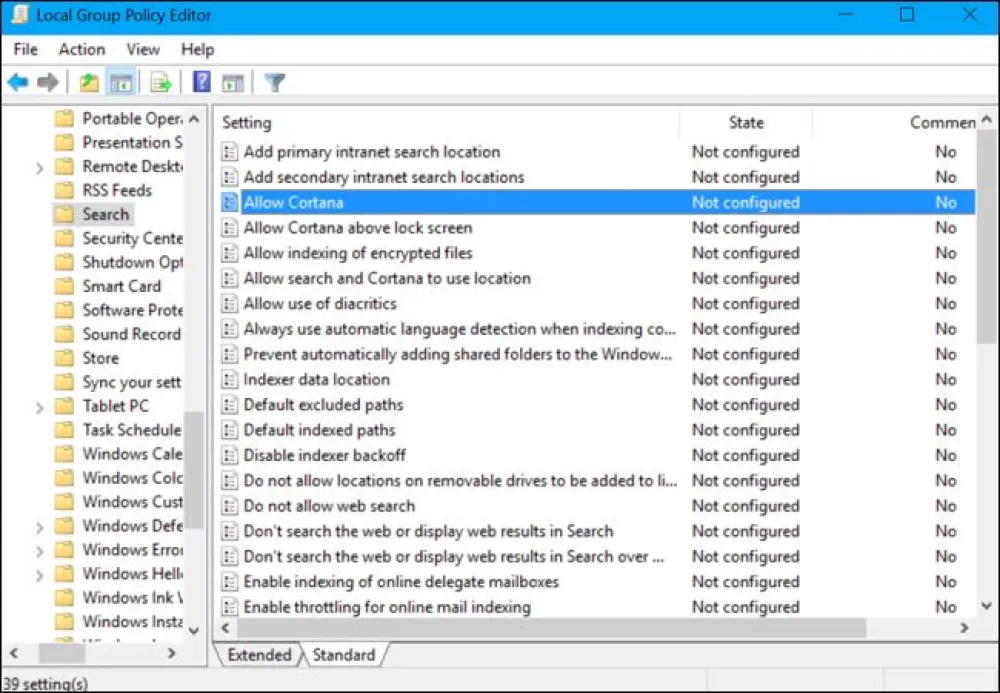
Navigate to Computer Configuration -> Administrative Templates -> Windows Components -> Search.
Search for the “Allow Cortana” setting in the right panel and double-click it.

Set the Allow Cortana option to “Disabled” status and then click “OK”.
Close the window, Restart your computer.

how disable Cortana / how enable Cortana
After we knew how to how disable Cortana, now how to enable Cortana, To re-enable Cortana, return here, double-click the “Enable Cortana” setting, and change it to “Not Configured” or “Enabled”.
0 Responses
Share your perspective and continue the conversation.
No responses yet
Be the first to share your thoughts.
Join the conversation